TL;DR

Get everyday helpers delivered free with Prime
- Fast, free delivery on millions of items
- Prime Video, Amazon Music and more included
- Member-only deals all year
To choose a large-button phone, try the complete calling process and check key size and spacing, label contrast, call volume, display, setup, and service requirements. Pick corded, cordless, or mobile based on where you call, then verify any hearing-aid compatibility or SOS behavior on the exact model.
A keypad can have numbers as big as postage stamps and still be hard to use if the buttons sit shoulder to shoulder. When you choose a large-button phone, the whole calling routine matters: seeing a contact, pressing the right key, hearing the ring, and adjusting sound once someone answers.
Large-button phones are designed to make calling easier for people who find small keys or touchscreens difficult to use. They can help people of many ages, including those with low vision, limited dexterity, or a preference for familiar physical controls. You’ll learn how to check the phone in person, compare home and mobile options, and spot features that sound helpful but need a closer look.
For instance, someone who calls family from the kitchen every evening may value a cordless handset and photo contacts. Someone who keeps a phone on a bedside table may prefer a corded model that stays put. The best choice starts with the user’s actual routine, not the label on the box.
Try a complete call, including answering, adjusting volume, and hanging up, before choosing.
Check key spacing, label contrast, tactile feel, and whether backlighting stays on long enough.
Choose corded, cordless, or mobile based on where calls happen and the user’s charging and coverage needs.
Read the exact instructions for SOS buttons; many call saved contacts rather than emergency services.
Plan who will configure contacts, voicemail, and support, then let the intended user practice.
A practical accessibility guide
How to Choose Large-Button Phones
Choose for the whole calling routine: seeing a contact, pressing the right key, hearing the ring, adjusting sound, and getting the phone ready for the next call.
01 / Hands-on trial
Start with a real call
A brief trial can reveal more than a feature list. Ask the user to complete familiar tasks without coaching, then repeat them where the phone will live.
- 1
Answer
Find the answer control and locate speaker or volume controls.
- 2
Find a contact
Use the keypad or a saved contact and check screen readability.
- 3
Adjust sound
Change call volume while speaking; test speakerphone if useful.
- 4
End and put away
Hang up, then return the phone to its usual spot or charger.
Can the user distinguish the keys, read the screen at their natural holding distance, and find call and end controls? A bright shop may not resemble a dim hallway or bedside table.
02 / Usability checklist
Look beyond button size
The best controls make common actions deliberate and comfortable. Check the phone in ordinary lighting and with the user’s preferred way of dialing.
Room to press
Look for clear gaps, raised surfaces, a distinct tactile feel, and keys that do not require an awkwardly firm press.
Easy to see
Check large, high-contrast numbers and symbols. See whether keypad backlighting stays on long enough to finish dialing.
Readable screens
Inspect caller information, contact lists, menus, and setup screens. Large buttons do not guarantee legible text.
Clear and reachable
Test ringer and call volume separately. Check speakerphone and hearing-aid compatibility on the specific equipment.
Know what happens
Confirm photo or one-touch contact capacity. Read how SOS activates, who it calls, and what happens if nobody answers.
Plan the handoff
Decide who will configure contacts, voicemail, and emergency calling; check instructions and accessible customer support.
03 / Match the setting
Choose a phone for daily life
No phone type is automatically easier. Match where calls happen with charging habits, coverage, service, and the user’s comfort with menus.
| Phone type | May suit you if… | Check before choosing |
|---|---|---|
| Corded home phone | You mostly call from one fixed place. | Some features, including caller ID or amplified sound, may need power. |
| Cordless home phone | You want to move around the home during calls. | Charging cradle, battery routine, and handset range. |
| Large-button mobile | You need to make calls away from home. | Coverage, carrier compatibility, battery, display, menus, and service. |
Availability, network support, and emergency-calling behavior can vary by model, carrier, and country. Verify current specifications for the exact phone.
04 / Details that matter
Build confidence into the setup
Extra features help when they fit the person’s routine and are set up in a way they can understand and practice.
Emergency shortcuts
An SOS button may call saved contacts rather than emergency services. Check activation steps, accidental-press risk, the contact order, and what happens if a call is unanswered. Do not assume behavior from a label.
Familiar contacts
One-touch or photo-dial buttons can make family calls easier. Confirm how many contacts can be stored and who will add them, then let the intended user practice each call.
05 / Before you buy
Take this short checklist
The right choice supports the person’s actual routine and helps them make calls comfortably and independently.
- ✓Try answering, dialing, adjusting sound, and hanging up.
- ✓Check spacing, tactile feel, label contrast, and backlight duration.
- ✓Choose corded, cordless, or mobile around call locations and charging habits.
- ✓Verify hearing-aid compatibility and SOS behavior for the exact model.
- ✓Read the display, contact list, and menus the user will need.
- ✓Arrange setup help, then give the intended user time to practice.
Quick answers
Common questions
Large-button phones are a varied category, with options from basic home handsets to mobiles with accessibility features.
Are they only for older adults?
No. They can help anyone who benefits from visible, easy-to-press physical controls.
Do big keys make the whole phone easy?
Not necessarily. Test the display, menus, sound, setup, and the complete calling process.
Is landline or mobile better?
A home phone can suit regular calls at home; mobile suits calls away. Choose for the user’s setting and routine.
Start by trying a real call, not just the keypad
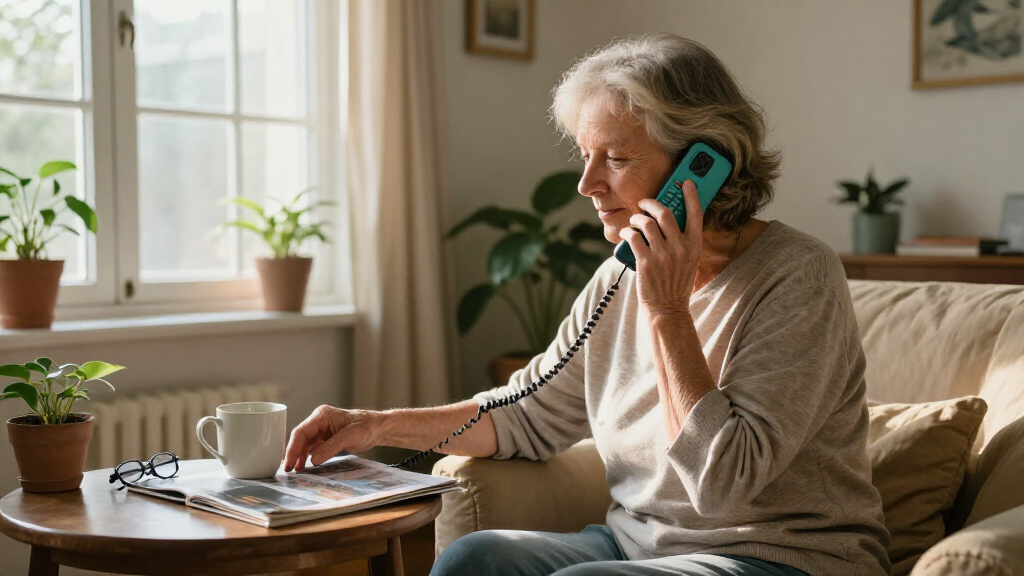
To choose a large-button phone, try the complete calling process: pick it up, find a contact, place a call, adjust the sound, and hang up. A large keypad helps only if the rest of the phone feels manageable. Treat the phone like a doorway: a wide entrance is useful, but you still need a clear path through the room.
Ask the intended user to make a familiar call without coaching. Can they tell the keys apart? Can they find the call and end buttons? Is the screen readable at the distance they naturally hold it? A brief hands-on try can reveal more than a list of features. For instance, a person may press “5” comfortably but struggle to read tiny menu text while saving a contact.
Try these tasks in the order they happen at home:
- Answer a call and locate the speaker or volume controls.
- Call a familiar person using the keypad or a saved contact.
- Adjust call volume while the call is active.
- End the call and return the phone to its usual place or charger.
Repeat the tasks in the room where the phone will live. A handset that feels simple in a bright shop may be harder to use beside a dim hallway table. If buying for someone else, let them lead the trial. Their comfort is the best guide to whether the phone will support independence.
Popular right now

Dyson Cyclone V10 Origin Cordless Vacuum

Ninja DualZone Smart Air Fryer, 10 Qt, 6-in-1, DZ950

Bose QuietComfort Headphones (2nd Gen), Wireless Noise-Cancelling Over-Ear Headphones, Eucalyptus Green
As an affiliate, we earn on qualifying purchases.
Check that the keys are easy to see and press
Large buttons work best when they have clear labels, good spacing, and a distinct feel. Size alone can mislead: broad keys packed tightly together may still be easy to hit by mistake. Look for a visible gap between buttons, high-contrast numbers, and raised surfaces you can identify with a fingertip.
Check the keypad under ordinary lighting and in the kind of light the user has at home. A pale gray “8” on a silver key can disappear in a sunny room, while a dark number on a light key may stand out. Backlit keys can help after dusk, but check whether they remain lit or glow only briefly. If the light fades before someone finishes dialing, it may not help much.
For instance, imagine a person calling a neighbor from a dim living room. They press the key, feel it click, and can tell it apart from the one above it. That tactile difference can reduce guesswork, especially for someone with limited finger control. Ask whether the keys need a firm press and whether adjacent buttons move when one is pressed.
Look for simple, familiar markings on the call, end, and volume controls. A green phone icon may be easier to spot than a tiny word. If a user prefers to dial from memory, test several numbers; if they rely on saved contacts, check the contact buttons too. The right keypad should make common actions feel deliberate, not like a game of chance.
Match the sound controls to the way you make calls
A suitable phone lets you adjust ringer and call volume in a way you can find and use. The ringer helps you notice an incoming call; the call volume matters after you answer. These are separate needs, so check both. A loud ring does not tell you whether the other person’s voice will sound clear.
Look for volume buttons that are easy to reach during a call, along with speakerphone if hands-free use would help. If the user wears hearing aids, check the manufacturer’s details for compatibility with the specific phone and hearing devices. Compatibility can depend on the equipment and model, so try a call when possible. Don’t assume that a “large-button” label says anything about sound performance.
Picture someone holding the handset in one hand while trying to find a tiny side switch with the other. If the control is awkward to reach, they may give up before getting comfortable. A short call with a family member can show whether the volume changes are obvious and whether speakerphone sounds useful in the room where the phone will be used.
Consider where the phone sits, too. A speakerphone may suit a kitchen counter, while a private handset call may feel better in a shared home. Check whether the ringer can be adjusted without changing call volume, and whether the phone shows a clear indicator when mute or speakerphone is active. Easy-to-find controls support confident calling without someone else needing to make every adjustment.
Choose corded, cordless, or mobile for your daily routine
A corded phone suits a fixed home spot, a cordless handset adds room-to-room movement, and a mobile phone travels outside. The right type depends on where calls happen and what services work in that location. No category is automatically easier; each asks you to manage a different routine.
A corded phone stays connected to its base and does not need handset charging. Some features, such as caller ID or amplified sound, may still depend on power, so check the specifications. A cordless home phone lets you carry it from the living room to the garden, but it needs charging and has a range limit. A mobile phone works away from home, yet it brings coverage, battery, and menu questions along with it.
| Phone type | Can suit you if… | Check before choosing |
|---|---|---|
| Corded home phone | You mostly call from one place. | Power needs for caller ID, amplified sound, or other features. |
| Cordless home phone | You want to move around the home during calls. | Charging cradle, battery routine, and range. |
| Large-button mobile | You need to make calls away from home. | Coverage, service, battery life, screen, and menus. |
For example, someone who spends afternoons in the garden may appreciate cordless freedom, while a person who forgets to charge devices may find a fixed handset simpler. If considering a mobile, check service in the places it will be used and confirm that the model works with the network and carrier. Current availability and support can vary by country and provider.
Look beyond big keys to the display and menus
A phone with large buttons can still have tiny text, crowded menus, or a hard-to-read contact list. Check every screen the user will need, including incoming caller information, stored contacts, voicemail prompts, and setup screens. The keypad is only one piece of the experience.
This matters most on mobile phones, where a physical number pad may sit below a small display. Some smartphones can enlarge text, simplify the home screen, or offer voice controls, but they may not have physical number keys. The useful question is not whether a phone has the most features; it is whether the person can find the ones they actually use.
Imagine trying to call a daughter from a contact list in bright sunlight. If the name is cut off or the screen washes out, a large keypad will not solve the problem. Check text size, contrast, menu steps, and how easy it is to return to the home screen. A simple menu with a few clear choices can feel calmer than a long list of options.
Ask someone who will help with setup to save a contact and leave a voicemail. If those tasks require several menus and small on-screen prompts, find out whether the user can manage them independently or whether a helper can set them up. Everyday simplicity often matters more than a long feature list. The phone should make routine calls easier, not add a new puzzle before each one.
Set up contact buttons and SOS features with care
Photo-dial and one-touch contacts can make calling easier for familiar people, especially when remembering or entering a number takes effort. Check how many contacts the phone stores, how labels appear, and who can configure them. A photo button can be more recognizable than a name in small print, but only if the picture is clear and the user knows what happens when they press it.
For instance, a household might place a photo contact for a sibling on the first memory key and label another key “neighbor.” Practice using each one together, then let the user repeat the call alone. The goal is a routine that feels familiar, not a feature that only works when the helper is standing nearby.
Some models include an SOS button that calls a saved contact list. Do not assume it automatically contacts emergency services. Read the exact instructions: learn how to activate it, whether a long press is required, what happens if the first contact does not answer, and whether the phone tries the next person. Check accidental-press risk, especially if the button sits where a palm may rest.
Agree on what the button does with the people whose numbers are saved, and test the setup in a planned way that does not trigger an unintended emergency response. Emergency features vary by model, service, and location. A clearly understood contact plan can be useful, but it cannot replace knowing how to call the appropriate local service when needed.
Plan for charging, setup, and support before buying
A phone is easier to use when its charging, setup, and support fit the user’s routine. For a home handset, check whether it needs a power outlet for specific features and whether the base must stay connected to a phone line. For cordless models, look at the charging cradle and battery routine. A handset that misses its cradle by an inch may spend the night uncharged.
For a mobile, check how the charger connects, how often the battery needs attention, and whether the network supports that model where it will be used. Service availability and emergency-calling behavior depend on the device, provider, and country. Confirm current details before purchase rather than relying on a general product description.
Setup deserves a real plan. Decide who will save contacts, configure voicemail, adjust text or sound, and explain any emergency shortcut. Then ask whether the user can repeat those steps or at least manage the regular tasks without help. For example, a caregiver might save three family contacts and print a large-type reminder for voicemail access, while leaving the phone itself within the user’s reach.
Clear instructions and accessible customer support can matter as much as the hardware. Find out how to reach help if the phone stops charging or a contact button changes. Programs that provide free or subsidized accessible communications may exist in some areas, with rules that vary by location and eligibility. Local disability or telecommunications services can explain what is available. Good setup turns features into usable tools.
Frequently Asked Questions
Are large-button phones only for older adults?
No. Large-button phones can help anyone who finds small keys or touchscreens difficult to see or press. A person with low vision, limited dexterity, or a preference for physical controls may appreciate them at any age.
Do large buttons mean the whole phone is easy to use?
No. A phone can have generous keys but still use small text, confusing menus, quiet audio, or difficult setup. Try the complete calling process, including saving or finding a contact and adjusting sound.
Is a landline or mobile phone better?
It depends on where you call and what service is available. A home phone can suit regular calls from one location, while a mobile is useful away from home. Check charging, coverage, network support, and household needs for the specific phone.
Will an SOS button call an ambulance or the police?
Not necessarily. Many SOS buttons call saved contacts, while other models or services may work differently. Read the phone’s instructions and confirm the call sequence, including what happens when the first contact does not answer.
Can I use a large-button phone with hearing aids?
Some phones are designed for hearing-aid compatibility, but it depends on the particular phone and hearing aids. Check the manufacturer’s information and, if possible, try a call with the devices you use before choosing.
What should I check when buying a phone for someone else?
Have the intended user try the buttons, screen, sound, and basic call tasks. Also check setup, charging, service or coverage, and who can configure contacts and voicemail. Their experience with the phone is more useful than assuming a feature will suit them.
Conclusion
Choose the phone the user can operate comfortably from the first ring to the goodbye. Test the keys, screen, sound, contacts, and charging routine together, in the places where calls will happen. If you are buying for someone else, let them handle the phone and show you what feels clear or awkward.
A well-chosen phone should feel like a familiar handle in the hand: easy to find, easy to hold, and ready when you need it.