
TL;DR

Get everyday helpers delivered free with Prime
- Fast, free delivery on millions of items
- Prime Video, Amazon Music and more included
- Member-only deals all year
Choosing a simple remote means focusing on essential buttons, large labels, and intuitive layouts. Compatibility, durability, and accessibility features make daily control easier and more reliable.
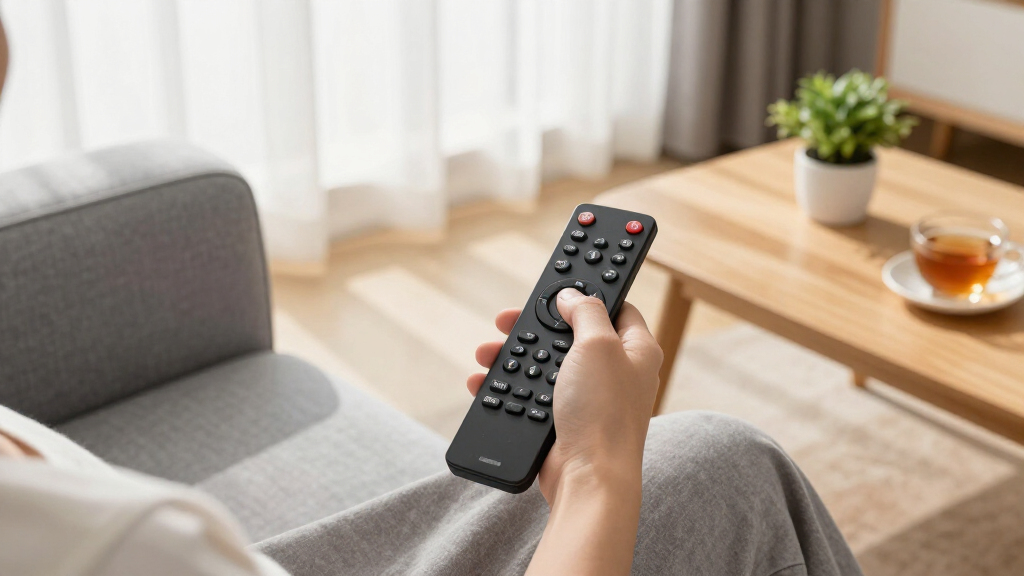
Imagine reaching for your TV remote and feeling overwhelmed by a sea of tiny buttons and confusing symbols. Now, picture a remote that fits perfectly in your hand, with just the essential controls clearly labeled and easy to press. That’s the power of choosing a simple remote control.
In this guide, you’ll learn how to identify the key features that make a remote truly easy to use, whether for yourself or someone you care for. Making this choice can transform how smoothly daily tech routines go—and keep independence alive.
Focus on essential buttons—power, volume, mute, navigation—avoid unnecessary extras.
Choose large, high-contrast, tactile buttons for easier operation and reduced errors.
Test remote comfort: grip, weight, button feedback—before buying or setting up.
Verify device compatibility carefully—what works with one device might not with another.
Prioritize accessibility features like voice control, backlighting, and tactile markers for better independence.
Choosing Simple Remote Controls for Ease of Use
The easiest remote is not always the one with the fewest buttons. It is the one whose controls, labels, layout, grip, and behavior make immediate sense to its intended user.
Less user effort with fewer controls, clearer labels, and a logical layout.
Each everyday action should feel predictable, visible, and easy to confirm.
“Less clutter. Better feedback. More independence.”
Make the important controls impossible to miss
Prioritize power, volume, channel, mute, input, navigation, OK, back, and home. Frequently used controls should be prominent, grouped logically, and distinguishable by touch.
Large, readable labels
Choose bold lettering, strong contrast, familiar words, and symbols supported by text.
Tactile differences
Raised buttons, varied shapes, and a clear click help users confirm actions without looking.
Logical grouping
Keep related controls together and separate high-risk buttons from everyday controls.
No unused clutter
Remove app, recording, menu, and number controls when they are not part of the daily routine.
Comfortable grip
A balanced body, rounded edges, and a non-slip back reduce fatigue, slips, and accidental drops.
Immediate feedback
Buttons should respond to light pressure and provide a clear tactile, visual, or audible confirmation.
Match the remote type to the real routine
A feature is only useful when the intended user can operate it reliably. Compare daily simplicity with setup effort, tactile control, and the number of devices involved.
| Remote type | Daily simplicity | Tactile use | Multiple devices | Setup effort | Best fit |
|---|---|---|---|---|---|
| Basic replacement | ✓High | ✓Strong | ✕One | ✓Low | One familiar device |
| Simplified universal | ✓High | ✓Strong | ✓Yes | ~Medium | TV, box, and audio |
| Learning remote | ✓Custom | ✓Strong | ✓Yes | ~Medium | Selected commands only |
| Senior-friendly | ✓Very high | ✓Excellent | ~Varies | ✓Low | Vision or dexterity needs |
| Voice-enabled | ~Contextual | ✕Limited | ~Platform-based | ~Accounts | Reduced button use |
| Smartphone app | ✕Variable | ✕Weak | ✓Often | ~Network | Confident touchscreen users |
| Activity or hub-based | ✓High later | ~Varies | ✓Excellent | ✕High | One-button activities |
Legend: ✓ strong fit ✕ weak fit ~ depends on model or user
Optimize for confidence, not feature count
These relative priorities turn the research themes into a practical evaluation order. Compatibility is the gate; clarity, layout, and feedback determine everyday success.
Choose the right remote in ten practical steps
Evaluate the actual device setup and the intended user together. A quick hands-on test reveals more than a long specification sheet.
List every device
Include the television, streaming box, cable box, soundbar, and receiver.
Observe the routine
Record which controls are used daily, occasionally, or never.
Choose essentials
Keep only the controls required for normal viewing and recovery.
Check readability
Inspect label size, contrast, wording, symbols, and dim-light visibility.
Test the grip
Confirm one-handed balance, reach, weight, and a non-slip surface.
Press every button
Look for moderate pressure, a clear click, and immediate response.
Verify compatibility
Check exact models and required features, not only the brand name.
Review setup
Prefer preset codes, automatic search, or straightforward learning.
Add accessibility
Consider backlighting, tactile marks, voice, straps, or shortcuts.
Run a real test
Watch, adjust volume, switch inputs, recover from errors, and replace batteries.
Know what happens after the button press
The signal method affects aiming, pairing, platform support, and reliability. Confirm both the connection type and the functions it can carry.
Simple, but needs sight
Common on traditional television remotes. It usually requires a clear line of sight and reasonable aiming.
Easy setupNo direct aiming
Works without line of sight, but often requires pairing and may be restricted to a specific platform.
Easy daily useFewer button presses
Helpful for some access needs, but it can depend on internet service, accounts, clear speech, and privacy choices.
Needs evaluationEvery design choice should lead to independence
A successful remote creates a continuous chain from perception to action. If one link fails, confusion, repeated presses, or reliance on a caregiver can return.
Make input switching obvious
Label the source button clearly or automate source selection whenever possible.
Protect essential settings
Avoid placing menu, reset, or input controls where they are easy to press accidentally.
Plan battery maintenance
Prefer common batteries, an accessible compartment, and a low-battery indicator.
Inspect long-term durability
Labels should resist wear while the casing tolerates drops and regular cleaning.
Choose for the person, the routine, and the room
Start with the controls used every day. Add strong contrast, tactile feedback, a comfortable grip, straightforward setup, and verified compatibility. Then test the complete routine in the place where the remote will actually be used.
It reduces hesitation, prevents errors, and keeps everyday technology within comfortable reach.
Why Simplicity Matters: How a Good Remote Boosts Independence
The right remote can feel like a breath of fresh air, especially for those with limited dexterity, vision issues, or cognitive challenges. When buttons are fewer, labels are clear, and layout is logical, users spend less time fumbling and more time enjoying their favorite shows or music.
For example, an elderly person might struggle with a remote that has a hundred tiny buttons. Replacing it with a remote that has only essential controls—power, volume, channel, mute, and input—can cut down frustration and accidental presses.
According to an anonymous researcher, a simplified remote can improve control accuracy by nearly 50%, making daily entertainment routines less stressful and more autonomous.
Popular right now

TCL 85 Designer Series QD-Mini LED TV (Model 85A400U) with Google Smart TV

Sony WH-1000XM4C Wireless Noise-Cancelling Headphones, Black

Bose QuietComfort Ultra Earbuds (2nd Gen), Deep Plum
As an affiliate, we earn on qualifying purchases.
Pick Buttons That Do Only What You Need—No Extra Clutter
When selecting a remote, focus on essential buttons—power, volume, channel, mute, input/source, navigation arrows, OK, back, and home. Extra buttons for menus, apps, or recordings often just add clutter and increase the chance of accidental presses.
For example, a simplified remote for a streaming device might only have six buttons—power, volume, mute, navigation, and OK. This reduces confusion, especially for users with cognitive challenges.
Remember: less is more. Prioritize what the user needs every day over bells and whistles that won’t get used often.
It’s important to consider that while fewer buttons create simplicity, they also limit functionality. Users should evaluate which controls are truly essential for their routine. Sometimes, removing less-used features can lead to missing out on advanced functions that might be helpful later. The key is balancing simplicity with future flexibility, perhaps by choosing a remote that allows easy addition of certain features if needed.
How Big and Readable Should Your Buttons Be?
Big, bold buttons with high-contrast labels are a game-changer. They catch the eye instantly and are easier to press for those with limited dexterity or visual impairments.
Imagine a remote with vibrant red, blue, and yellow buttons. The labels are large, with white text on black backgrounds. Such design can significantly reduce errors and increase confidence during use.
For example, a person with arthritis might find a remote with 1-inch diameter buttons easier to operate than a tiny keypad. Clear, tactile labels and textured buttons add an extra layer of accessibility.
However, while larger buttons improve visibility and ease of pressing, they can also reduce the number of controls on a remote, potentially limiting functionality. The tradeoff is between simplicity and feature richness. Users should consider their specific needs—if they require many functions, a compromise might be necessary, such as a remote with large, tactile buttons for primary controls and smaller, less frequently used buttons for advanced features.
Comfort and Grip: Holding a Remote Should Feel Natural
The remote should feel balanced and easy to hold, even for people with reduced grip strength. Lightweight, with a textured surface or ergonomic shape, helps prevent slips and fatigue.
Picture a remote with a soft rubberized back and rounded edges. It fits comfortably in one hand, with buttons within easy reach. This design reduces the effort needed to operate it, especially for those with tremors or arthritis.
For instance, a caregiver might choose a remote that weighs under 6 ounces and has a non-slip surface for someone with shaky hands—making control smoother and less tiring.
Choosing a remote with ergonomic features isn’t just about comfort; it can also prevent accidental drops and improve the overall user experience. The tradeoff might be slightly increased size or weight, but the benefits for ease of use often outweigh these considerations.
Making Setup Easy: Skip the Tech Headaches
A remote that’s simple to set up gets used more often. Look for models with preset device codes, automatic scanning, or learning functions that clone your existing remote without complex programming.
Imagine a senior trying to program a remote—frustration quickly sets in if the process is complicated. A remote that automatically finds compatible devices or learns commands with a few button presses makes life easier.
For example, a universal remote with one-touch device setup or a learning remote that mimics your cable box remote can be up and running in minutes, not hours.
However, some setup procedures can be overly simplified but may limit customization or advanced features. It’s important to balance ease of setup with the ability to fine-tune controls if needed for more complex systems.
Compatibility: Making Sure Your Remote Works with Your Devices
Not all universal remotes are created equal. Confirm that a remote supports your specific TV, streaming device, or sound system before buying. Compatibility isn’t just about brand—features matter.
For example, a remote might be labeled universal but won’t support certain smart TV apps or HDMI-CEC controls. Double-check the model’s compatibility list or ask the seller.
Choosing a remote that supports your device’s functions—like input switching, subtitles, or streaming controls—prevents future headaches.
Additionally, some remotes support a wide range of devices but may lack advanced features like voice control or customizable macros. Evaluating what features are essential for your setup helps prevent dissatisfaction and the need for multiple remotes.
Responsiveness and Feel: How Your Remote Tells You It’s Working
Buttons should give a satisfying tactile click or soft bump, confirming each press. A remote that responds immediately with no lag helps avoid repeated presses or accidental inputs.
Imagine pressing the volume up button and hearing a crisp click, then seeing the TV volume rise instantly. That’s confidence in the control.
Test responsiveness by pressing buttons gently and observing the reaction. Good remotes work well even with light touches, reducing effort for users with limited strength or dexterity.
In addition to tactile feedback, some remotes incorporate audible cues or visual indicators, enhancing confidence and reducing errors. The responsiveness can also be affected by battery health—weak batteries may cause delays or unresponsiveness, so choosing a remote with easy-to-replace batteries helps maintain reliable operation.
Battery Life and Maintenance: Keep It Simple and Reliable
Choose a remote with standard batteries that are easy to replace—like AA or AAA—and a clear, accessible battery compartment. A low-battery indicator prevents sudden loss of control.
Picture a remote with a simple slide-open back and a blinking light when batteries run low. No need for special chargers or frequent replacements.
Rechargeable remotes are convenient but may require a charging station—something to weigh based on user preference and tech comfort.
Considering the tradeoff, non-rechargeable batteries are often more straightforward for users who prefer minimal maintenance, but rechargeable options can be more economical over time. The key is selecting a remote that balances ease of battery replacement with long-lasting power, minimizing interruptions in daily use.
Durability and Longevity: Built to Last and Stay Clear
A remote that withstands drops, spills, and frequent cleaning saves frustration and money. Look for sturdy casing, fade-resistant labels, and buttons designed to resist wear.
Imagine a remote with reinforced edges, water-resistant surface, and labels that don’t fade after months of use. That’s a smart investment for daily life.
For example, a caregiver might choose a rugged remote for a person with tremors or cognitive decline, knowing it’s built to endure accidental knocks.
While durability often comes with a higher initial cost or bulkier design, these tradeoffs are usually justified by longer lifespan and fewer replacements, especially in environments where the remote might be subject to rough handling or cleaning.
Accessibility Features That Make a Difference
Features like voice control, backlighting, tactile markers, and programmable shortcuts can dramatically increase ease of use. They cater to visual, motor, or cognitive limitations.
Picture a remote with a large, illuminated button for night use or tactile bumps that orient the user’s fingers. Voice commands can help find content without searching through menus.
For example, a person with limited vision might rely on high-contrast labels and voice prompts, allowing them to operate the remote confidently in any lighting.
Choosing the right accessibility features depends on individual needs. Overloading a remote with too many options can be confusing, so selecting the most relevant features for the user’s specific limitations ensures maximum benefit without added complexity.
How to Choose the Perfect Remote in 10 Easy Steps
- List your device needs: TV, streaming, cable, audio.
- Assess the user’s visual, motor, and cognitive abilities.
- Check device compatibility carefully.
- Decide if number buttons are necessary for channel entry.
- Prioritize large, high-contrast buttons and simple layout.
- Choose a remote with straightforward setup options.
- Test for comfort: grip, button size, and responsiveness.
- Consider accessibility features—voice, backlight, tactile markers.
- Verify battery type and ease of replacement.
- Keep the original remote as backup for advanced controls.
Following these steps helps ensure the remote will serve its purpose well and last for years.
Frequently Asked Questions
What buttons are essential on a simple TV remote?
The most important buttons are power, volume up/down, channel up/down, mute, input/source, navigation arrows, OK, back, and home. These cover the core functions needed for daily TV and streaming use.
Are large-button remotes only intended for older adults?
Large-button remotes benefit anyone with visual or motor challenges, but they’re especially helpful for older adults, people with arthritis, or tremors. They make control easier and more confident for all users.
Will a universal remote work with my exact television or streaming device?
Not always. Check the remote’s compatibility list carefully before purchasing. Some universal remotes support most brands but may lack advanced features or specific device controls.
Can one simple remote control a TV, soundbar, and cable box?
Yes, if the remote supports multiple devices. Look for models with multi-device control and clear setup instructions. Sometimes, a universal remote with activity buttons simplifies multi-device management.
What is the difference between infrared, Bluetooth, and radio-frequency remotes?
Infrared remotes require line of sight and emit a beam of light. Bluetooth and RF remotes can operate without direct aiming, often needing pairing or setup but offering more flexible placement.
Conclusion
Picking a simple remote isn’t about stripping away features—it’s about making daily control effortless and reliable. When you choose with care, you empower yourself or a loved one to enjoy entertainment and stay independent longer.
Remember: the best remote is the one that fits your needs, feels natural in your hand, and makes every press count. Keep it simple, keep it reliable, and enjoy the comfort of control at your fingertips.