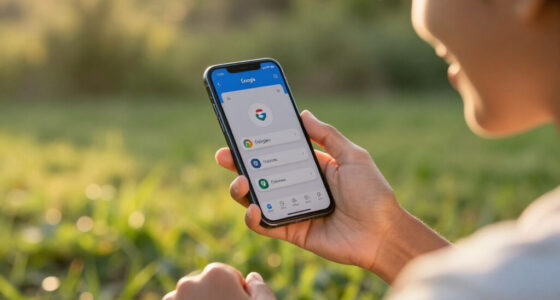

This guide helps seniors and caregivers select a medical alert system, arrange the service, set up its equipment, and test that help can be reached. It is for people comparing systems for the first time or replacing an existing device. No technical experience is needed; plan for about 1–3 hours to compare options and complete setup, not counting shipping or installer appointments.

Get everyday helpers delivered free with Prime
- Fast, free delivery on millions of items
- Prime Video, Amazon Music and more included
- Member-only deals all year

SecuLife Medical Alert Pendant for Seniors with Fall Detection, GPS Tracking, and Two-Way Calling
- ✔ Connectivity: 4G LTE cellular
- ✔ Alert features: Fall alerts, SOS calling, GPS tracking, and geofencing
- ✔ Communication: Two-way calling and hands-free auto-answer

Wi-Fi Medical Alert System for Seniors with Call Buttons, Waterproof Wristband, Receiver, and LED Number Display
- ✔ Connectivity: 2.4 GHz Wi-Fi and wireless signal
- ✔ Maximum stated range: Up to 300 feet
- ✔ Alarm volume: 110 dB

CallToU Caregiver Pager with 2 Wireless Call Buttons and 2 Receivers
- ✔ Included components: Two wireless call buttons and two receivers
- ✔ Wireless range: 500+ feet in open areas
- ✔ Ringtones: 55 options
A suitable system should match where the person spends time, how they communicate, and whether they can press a button or need automatic fall detection. The final test is a confirmed connection with the monitoring center and a clear plan for responders.
Difficulty: Beginner | Time: 1–3 hours for research and setup, plus any delivery time
What You’ll Need
Tools & Materials:
- Phone or computer with internet access
- Pen and paper or a notes app
- The senior’s current address and emergency contact details
- A payment method if ordering a service
Knowledge:
- A general understanding of the senior’s mobility, health needs, and typical routine
- Knowledge of whether reliable cellular service or a landline is available at home
- A caregiver or trusted contact who can help review the plan and test the device
Ask the senior to take part in the decision whenever possible. Check the provider’s current coverage map, pricing, contract, cancellation terms, equipment return rules, and replacement fees before ordering. A medical alert service supports emergency response but does not replace medical care, a phone, or a clinician’s advice.
SecuLife Medical Alert Pendant for Seniors with Fall Detection, GPS Tracking, and Two-Way Calling
SecuLife is the most capable choice for seniors who need protection beyond the home. Its 4G LTE connection, GPS tracking, geofence notifications, and two-way calling make it fundamentally different from the Wi-Fi system and CallToU, which depend on nearby receivers or household connectivity. The large SOS button and hands-free auto-answer can also make communication more direct when the wearer cannot easily reach a phone.Automatic fall detection is a meaningful distinction, but it should be treated as an added alert pathway rather than a guarantee that every fall will be recognized or help will arrive. This product sends alerts to preselected contacts; the provided information does not describe a staffed emergency-response center. Families should confirm how contacts are notified and whether they can respond promptly. The GPS history and geofence alerts may help relatives keep track of routines, but location sharing is only useful if the device is worn and connected.The tradeoff is commitment: a subscription is required, and battery claims are not fully consistent—the details list up to six days under a specific tracking interval but also give an average of five days. Compared with the home-only options, SecuLife offers more independence, but it needs charging and cellular coverage. Its IP67 rating supports use in rain or the shower, though families should still follow the manufacturer’s care instructions.
Pros:
- GPS tracking and geofence notifications support location awareness beyond the home.
- Automatic fall detection and SOS alerts can notify preselected contacts.
- Two-way cellular calling provides a direct way to communicate through the pendant.
- IP67 rating supports wearable use in rain or while showering.
Cons:
- Requires a monthly subscription.
- Battery-life information varies, so charging frequency may be difficult to predict.
- Cellular and GPS usefulness depends on coverage and the wearer carrying the device.
Best for: Seniors who spend time outside the home and need GPS location, two-way cellular calling, or fall alerts sent to selected contacts.
Not ideal for: Households seeking a no-subscription local alarm, or wearers who may not reliably keep a pendant charged and on their person.
Bottom line: We rank SecuLife first for seniors who need a mobile, feature-rich alert path, provided the subscription and charging routine are acceptable.
“We rank SecuLife first for seniors who need a mobile, feature-rich alert path, provided the subscription and charging routine are acceptable.”
Wi-Fi Medical Alert System for Seniors with Call Buttons, Waterproof Wristband, Receiver, and LED Number Display
This Wi-Fi system is a practical middle ground for a senior who is mostly at home and has caregivers who want notifications on their smartphones. Pressing a call button can sound the receiver’s 110 dB alarm, while the 2.4 GHz Wi-Fi connection supports app notifications that can be shared with multiple caregivers. Unlike SecuLife, it does not offer GPS tracking, cellular calling, or described fall detection; its value is in making a home alert audible while also giving caregivers an app-based route to be notified.The stated wireless range of up to 300 feet and ability to pass through walls and doors may help cover more than one room, but actual performance depends on the home. Its waterproof wristband remote is useful near a shower, a common place for falls, yet only the wrist-worn remote is specified as waterproof. Buyers should not assume the receiver or other buttons can be exposed to water.The receiver can sound an alarm without a monthly fee, which distinguishes it from the subscription-required SecuLife. However, additional SMS notifications do require a subscription, and the system only supports 2.4 GHz Wi-Fi. Compared with CallToU’s two receivers and two call buttons, this option puts more emphasis on app-connected caregiver notifications, but buyers should confirm that their router and preferred notification method are compatible.
Pros:
- Receiver sounds a 110 dB alarm without a monthly fee.
- App notifications can be shared with multiple caregivers.
- Waterproof wristband remote can be worn while showering.
- Wireless range is stated as up to 300 feet, with signal penetration through walls and doors.
Cons:
- Additional SMS notifications require a subscription.
- Only the wrist-worn remote is specified as waterproof.
- Supports 2.4 GHz Wi-Fi only and is not a mobile GPS alert system.
Best for: Seniors who spend most of their time at home and want a loud local receiver plus app notifications that can reach multiple caregivers.
Not ideal for: People who need GPS, cellular coverage away from home, automatic fall detection, or a system with every component waterproof.
Bottom line: We recommend this system for connected households that want an audible home alarm and caregiver app alerts without paying for the receiver’s basic alarm function.
“We recommend this system for connected households that want an audible home alarm and caregiver app alerts without paying for the receiver’s basic alarm function.”
CallToU Caregiver Pager with 2 Wireless Call Buttons and 2 Receivers
CallToU is the straightforward pick for alerting someone already in or near the home. Two wireless call buttons and two plug-in receivers let a household place buttons where help may be needed and receivers where a caregiver is likely to hear them. That ready-made two-and-two setup is more flexible across rooms than a single-receiver arrangement, while its stated 500+ foot open-area range is the longest listed among these three products.That range needs context: it is specified for open areas, and indoor walls or the home’s layout may reduce reach. The receivers also need electrical outlets, so placement is limited by available power. Five volume levels, up to 110 dB, and 55 ringtone options offer ways to make the alert more noticeable or recognizable, although the many tones do not replace a remote call or automatic fall detection. Unlike SecuLife, CallToU does not provide GPS or two-way conversation; unlike the Wi-Fi system, its supplied details do not describe smartphone app notifications.Both buttons and receivers are described as waterproof and dustproof, which makes this set a useful option for a home where equipment may encounter spills or damp conditions. Its main limitation is the local-alert model: someone must be within hearing range and able to respond. Choose it for an uncomplicated caregiver pager, not as a substitute for off-site monitoring or a wearable mobile alert service.
Pros:
- Includes two wireless call buttons and two plug-in receivers.
- Stated wireless range exceeds 500 feet in open areas.
- Buttons and receivers are described as waterproof and dustproof.
- Offers 55 ringtone choices and five adjustable volume levels up to 110 dB.
Cons:
- Receivers must be plugged into electrical outlets.
- The stated range is for open areas and may be shorter indoors.
- No GPS, fall detection, or smartphone alert feature is specified.
Best for: Caregivers supporting a senior at home who want two call buttons and two receivers to cover multiple rooms without relying on an app.
Not ideal for: Seniors who are often alone away from home, need GPS or fall detection, or require a system that directly supports two-way communication.
Bottom line: We choose CallToU for households that need a simple, expandable-sounding local pager across rooms, but not for seniors needing mobile or remote emergency coverage.
“We choose CallToU for households that need a simple, expandable-sounding local pager across rooms, but not for seniors needing mobile or remote emergency coverage.”
As an Amazon Associate we earn from qualifying purchases.
Before You Start
Write down the senior’s address, apartment or unit number, entry instructions, and any details responders may need, such as mobility limitations or pets. Ask the senior’s clinician or pharmacist about medical conditions and medications that may affect emergency response; do not assume a device can detect a specific condition. Avoid sharing sensitive medical or payment information until you have verified the provider and understand its privacy and billing terms.
Do not test the emergency button by placing a false emergency call without checking the provider’s test procedure. Some monitoring centers ask users to announce a test; others have a designated test mode. Follow the provider’s instructions to avoid dispatching emergency services.
Step-by-Step Instructions
Step 1: List the senior’s needs and routine
Talk with the senior and, if appropriate, a caregiver. Note whether the person lives alone, spends time in a yard or garage, leaves home regularly, uses stairs, or may be unable to reach a phone after a fall. Record any difficulty hearing, speaking, remembering to charge devices, or pressing a small button. Decide who should be contacted first and who can enter the home.
Use these notes as requirements when comparing plans. For example, someone who rarely leaves home may need a home unit, while someone who walks the dog or attends appointments may need a mobile system.
Tip: Treat automatic fall detection as an optional aid, not a guarantee. It can miss some falls and can sometimes trigger a false alarm.
Check: You have a short written list of locations, risks, communication needs, and preferred emergency contacts.
Step 2: Choose the service type and connection
Compare home systems, mobile systems, and combination plans. Home systems usually connect through a base unit using a landline or cellular network; mobile devices use cellular service and may include location features. Check whether the person can use the device everywhere they need help, including the yard, basement, or regular travel areas.
Ask the provider whether the service works in the senior’s home and routine destinations. Confirm whether the device requires Wi-Fi, a landline, a specific cellular carrier, or a smartphone. If a phone is needed for setup or ongoing use, verify that the senior has a compatible phone and can operate it.
Tip: A provider’s coverage map is a starting point, not proof of a strong signal inside a particular home. Ask about a trial period and test the device in the actual places it will be used.
Check: You can explain which connection the system uses and where the provider says it should work.
Step 3: Compare costs, contract terms, and support
Request the full price in writing. Ask about monthly or annual monitoring charges, equipment fees, activation or shipping charges, optional fall detection, taxes, and any cost to replace a lost or damaged device. Check whether the quoted price changes after an introductory period.
Read the service agreement before paying. Look for the minimum term, renewal rules, cancellation process, refund or trial-period conditions, equipment return deadline, and whether a caregiver can manage the account. Ask how the monitoring center handles a call, how responders are contacted, and what support is available if the equipment fails.
Tip: Do not compare plans by monthly price alone. A low price may exclude equipment, mobile coverage, fall detection, or services the senior needs.
Check: You know the expected total cost, what the plan includes, and how to cancel or return equipment.
Step 4: Order the system and prepare emergency details
Order directly from the provider or an authorized seller after confirming the plan and return terms. When the device arrives, gather the base unit, wearable button, charger, and written instructions. Create or review the account with the senior’s correct name, address, apartment number, phone number, and emergency contacts.
Add useful entry details, such as a lockbox code or an approved way for responders to reach the door, only through the provider’s secure account process. Tell listed contacts that they may receive an alert and explain how they should respond. Keep the provider’s phone number and account details in a safe, accessible place.
Tip: Confirm that the address is entered in the format emergency services use. A missing unit number can delay responders.
Check: The account shows the correct address and contacts, and the people listed know their role.
Step 5: Install and wear the equipment
Follow the model-specific instructions to connect the base unit or charge and activate the mobile device. Place a home base unit where the senior can hear it and where its microphone and speaker are not blocked by furniture, curtains, or a television. Keep it connected to power as instructed.
Put the wearable button where the senior will actually wear it: on a wrist, around the neck, or clipped to clothing as its design allows. Follow the manufacturer’s guidance about bathing, sleeping, and charging. If the device is not water-resistant, remove it before water exposure and keep it within reach. Show the senior how to press the button and speak with the monitoring center.
Tip: Do not hide the wearable in a drawer or leave it on a bedside table. A device only helps when it is accessible and worn or carried as directed.
Check: The equipment powers on, the wearable fits comfortably, and the senior can demonstrate how to activate it.
Step 6: Run the provider’s test and confirm the response plan
Use the provider’s designated test procedure or call its support line to arrange a test. Tell the monitoring center that this is a test, then press the alert button only when instructed. Speak clearly through the device and confirm that the operator can hear the senior. Ask the operator to verify the account address and emergency contacts, then confirm what would happen during a real alert.
Test from locations the senior uses, such as different rooms or the yard, if the provider allows it. Ask what to do if the system does not connect. Write down the test date, the support number, and the charging or battery guidance. Repeat tests at the interval recommended by the provider and after moving equipment or changing service details.
Tip: Stay on the line until the operator confirms the test is complete. Do not assume a light or sound by itself means the monitoring center received the signal.
Check: The monitoring center confirms the test, identifies the correct account and location, and explains the alert procedure.
Common Mistakes to Avoid
- Choosing a home-only device when the senior needs protection outside the house. — Map the senior’s regular routine and compare coverage for each place they expect to use the device, including outdoor areas and travel destinations.
- Assuming fall detection will identify every fall or replace pressing the button. — Ask the provider how the feature works and what its limits are. Teach the senior to press the button whenever they can, even when fall detection is included.
- Entering incomplete address or contact information. — Verify the full address, unit number, phone numbers, entry instructions, and contact permissions with the provider, then confirm those details during a test.
- Leaving the button uncharged or unworn. — Agree on a routine for wearing and charging it, check battery alerts, and follow the model’s instructions for bathing and sleep.
Troubleshooting
Problem: The base unit or mobile device will not connect during setup.
Solution: Check power, charging, cables, and activation status using the manual. Move the unit away from obstructions and test cellular reception where the senior will use it. Contact the provider before relying on the system; ask about another connection type or a replacement unit.
Problem: The monitoring center cannot hear the senior clearly.
Solution: Move closer to the base unit or use the mobile device as directed. Reduce television or background noise, check that the speaker and microphone are not blocked, and ask the provider to test again. Request service or replacement if the problem continues.
Problem: The wearable button is uncomfortable or the senior forgets to wear it.
Solution: Try an approved wrist, neck, or clip option and adjust the fit according to the instructions. Place a reminder by the door or bed and tie charging to an existing daily routine. Contact the provider if the available styles do not suit the senior.
Problem: A test call reaches the wrong address or contact.
Solution: Ask the monitoring center to correct the account immediately, then repeat the test and have the operator read back the location and contact sequence. Do not treat the service as ready until the information is correct.
What Success Looks Like
The system is ready when the senior can operate and comfortably wear or carry the device, the equipment connects in the places it is intended to cover, and a test reaches the monitoring center. The operator must confirm the correct address and contact details and explain how help will be contacted. The senior and caregivers should know how to charge the device, what to do after pressing the button, and how to reach provider support.
Next Steps
Keep the provider’s instructions and support number near the home base unit, but protect account credentials and payment details. Check the wearable’s fit and battery status regularly, and review the emergency contacts whenever a phone number, caregiver, address, or entry method changes. Test the system on the schedule the provider recommends and after a move, equipment replacement, or service change. If coverage or the senior’s needs change, contact the provider and reassess whether the current plan still fits.
If the device fails during an emergency, use a phone or another available way to contact local emergency services. For questions about medical care or fall risks, speak with the senior’s clinician rather than relying on the alert service alone.
Frequently Asked Questions
Does a medical alert system require a landline?
Not always. Some home systems use a landline, while others connect through cellular service; mobile systems typically use cellular service. Confirm the connection type, coverage, and any phone or internet requirements for the specific model and address.
Can the senior wear the alert button in the shower?
Only if the specific device is rated for water exposure and the provider’s instructions permit it. Check the product documentation; do not assume that every wearable button is waterproof. If it must be removed, keep it close and accessible according to the provider’s guidance.
Does automatic fall detection call for help every time?
No. Fall detection can miss some falls and may trigger alerts when no fall occurred. Ask the provider about the feature’s limitations and response process. The senior should press the button when able and use another way to call for help if the device does not respond.
How often should the system be tested?
Follow the provider’s recommended schedule and use its approved test procedure. Test again after changing the address, moving the base unit, replacing equipment, or changing the service connection. Always identify a test to the monitoring center as instructed.
What should we do if the senior moves?
Contact the provider before relying on the system at the new home. Update the service address, check coverage and connection requirements, move or replace equipment as directed, update responder access details, and run a test from the new location.
Halloween Picks
halloween
As an affiliate, we earn on qualifying purchases.